
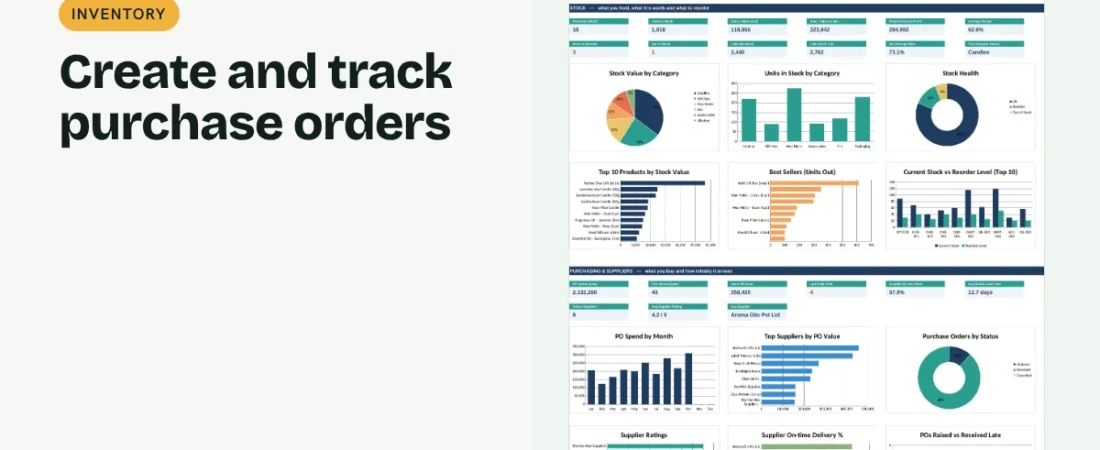
A purchase order (PO) puts what you are buying, at what price and by when, in writing before the supplier ships. This guide shows how to create a purchase order in Excel and keep a log that tells you what is pending, late or received.
1. Set up the PO layout
Include your business name, address and tax number, the PO number and date, the supplier’s details, delivery address and expected delivery date. A fixed print area makes it easy to save as PDF.
2. Add items, quantities and prices
List each item with quantity and agreed unit price. Line total is quantity × price; sum the lines and add tax at the applicable rate. Pick items from your product list so names and codes match your stock records.
Example PO log
| PO | Supplier | Amount (₹) | Expected | Received | Status |
|---|---|---|---|---|---|
| PO-0041 | Aroma Oils | 74,340 | 20 Jan | 19 Jan | On time |
| PO-0042 | Glass Jar Co. | 46,020 | 28 Jan | Overdue |
Overdue POs should prompt a call to the supplier and a check of stock levels.
3. Record the PO in a log
Log PO number, date, supplier, amount, expected date, status and received date. Every PO you send should appear here, so nothing is ordered twice or forgotten.
4. Track delivery performance
When goods arrive, enter the received date. Days late = received date − expected date. Flag late and overdue POs so you can chase suppliers and update your stock plan.
Good purchasing habits
Check goods against the PO
Compare quantities and items received with the PO before accepting the supplier’s bill.
Use one numbering sequence
Sequential PO numbers make it easy to spot gaps and duplicates.
Agree terms in writing
Payment terms, delivery responsibility and price validity on the PO prevent disputes later.
FAQs
What is the difference between a PO and an invoice?
You send a PO to the supplier to order goods. The supplier sends you an invoice to request payment.
Do small businesses need purchase orders?
They are not always required, but they reduce mistakes and make supplier performance measurable.
Should the PO include tax?
Showing tax helps you budget the full cost. Confirm the applicable rate with the supplier.
Get the template
The ReadySheets Purchase Order Template fills supplier and product details from dropdowns, prints cleanly and tracks every PO with late deliveries flagged on a dashboard. Pair it with the Supplier Directory.
Related guides: How to Manage Suppliers in Excel · How to Track Inventory in Excel for a Small Business