
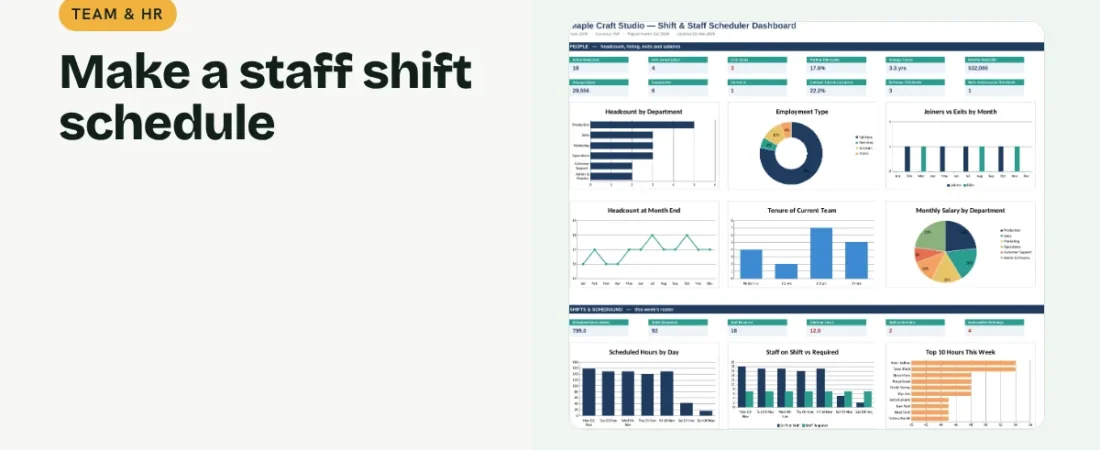
A good roster covers every shift without burning people out. This guide shows how to make a staff shift schedule in Excel that counts hours, flags overtime and shows whether each shift has enough staff.
1. Define your shifts
Create a small table of shift codes with names and hours, for example M morning 8 hours, E evening 8 hours, G general 9 hours and OFF. Add the minimum staff needed for each shift.
2. Build the weekly grid
List staff down the side and the seven days across the top. Each cell holds a shift code from a dropdown, so entries stay consistent.
Example coverage check
| Shift | Mon | Tue | Wed | Minimum |
|---|---|---|---|---|
| Morning (M) | 3 | 2 | 1 | 2 |
| Evening (E) | 2 | 2 | 2 | 1 |
Wednesday morning is understaffed and needs one more person.
3. Count hours and overtime
Look up each code’s hours and add them across the week. Overtime = weekly hours − your weekly limit when positive. Highlight anyone above the limit.
4. Check coverage
For each day and shift, count staff with COUNTIF and compare with the minimum. Flag understaffed shifts in red so gaps are fixed before the week starts.
Rostering tips
Publish early
Share the roster several days ahead so people can plan.
Balance difficult shifts
Rotate late and weekend shifts fairly across the team.
Mark leave first
Enter approved leave before assigning shifts so you do not schedule someone who is away.
FAQs
How do I count a split shift?
Create a separate code with its total hours.
What weekly hours limit should I use?
Use the limit set by applicable labour law and your policy. Check the rules for your state and sector.
Can I plan more than one week?
Copy the weekly grid for each week, or change the week start date and save each roster.
Get the template
The ReadySheets Shift & Staff Scheduler counts hours and overtime, checks coverage against minimum staff and shows staffing gaps on a dashboard.
Related guides: How to Track Employee Attendance and Leave in Excel · How to Track Projects and Tasks in Excel