
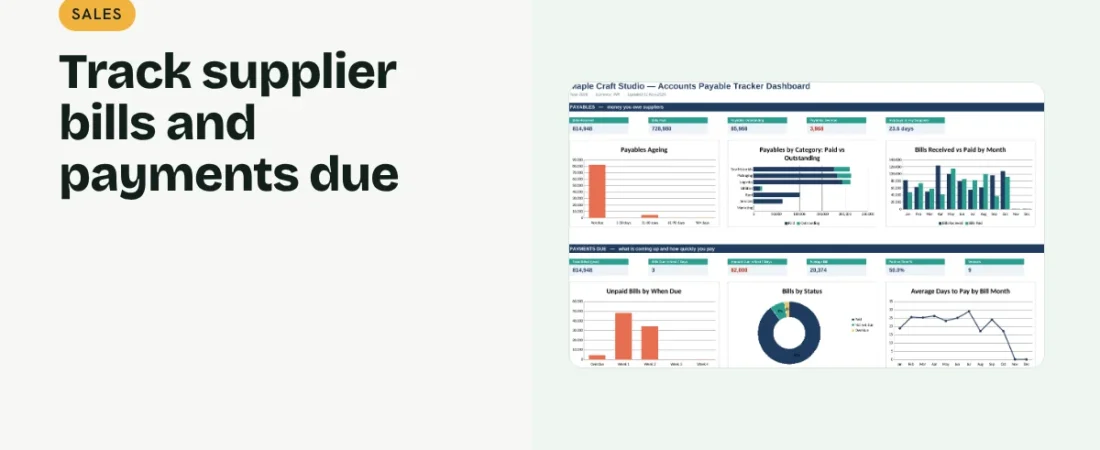
Paying suppliers late damages relationships and can mean penalties; paying too early can squeeze cash. This guide shows how to track accounts payable in Excel so you know exactly what is due and when.
1. Record every bill when it arrives
Log Bill No, Vendor, Category, Bill Date, Due Date, Amount and Status. Entering bills as they arrive, not when you pay them, keeps the picture complete.
2. Flag overdue and upcoming bills
Days overdue = today − due date for unpaid bills. Use conditional formatting to highlight overdue rows and bills due within seven days.
Example: what is due
| When due | Amount (₹) |
|---|---|
| Overdue | 6,000 |
| This week | 28,000 |
| Next week | 15,000 |
| In 3–4 weeks | 33,000 |
Knowing this a few weeks ahead lets you time receipts and payments sensibly.
3. See what is due soon
Use SUMIFS to total unpaid bills due this week, next week and in the following weeks. This feeds directly into your cash flow plan.
4. Measure how fast you pay
For paid bills, days to pay = paid date − bill date. Track the average and the share paid on time to keep supplier relationships healthy.
Good payables habits
Check bills before approving
Match each bill to the purchase order and goods received before paying.
Use early payment discounts wisely
Take them when cash allows; the saving can be worth more than holding the cash.
FAQs
What is accounts payable?
Money your business owes suppliers for goods or services received on credit.
How is it different from receivables?
Payables are what you owe; receivables are what customers owe you.
How often should I review payables?
Weekly, when you plan the week’s payments.
Get the template
The ReadySheets Accounts Payable Tracker shows overdue bills, amounts due in the coming weeks, paid-on-time rate and days to pay on a dashboard.
Related guides: How to Track Accounts Receivable in Excel · How to Create a Cash Flow Forecast in Excel