
Missing a GST payment or losing track of input credit costs money. A simple monthly register makes both visible. This guide shows how to track GST in Excel: tax collected on sales, credit on purchases, what you owe and whether it has been paid.
1. Record taxable sales and purchases by month
Total your taxable sales and taxable purchases for each month. If you keep an income and expense log, sum these with SUMIFS so the GST sheet updates on its own.
2. Calculate output tax and input credit
Output tax is taxable sales times the GST rate. Input tax credit is the GST paid on eligible purchases. Rates and eligibility depend on the goods or services, so confirm them for your business.
Example month at 18%
| Item | Amount (₹) |
|---|---|
| Taxable sales | 50,000 |
| Output GST | 9,000 |
| Taxable purchases | 20,000 |
| Input tax credit | 3,600 |
| Net GST payable | 5,400 |
This is a simplified illustration with a single rate. Real returns may include several rates and adjustments.
3. Work out net tax payable
Net tax is output tax minus input credit. If credit exceeds output tax, the difference may carry forward. Show the net figure for each month in its own column.
4. Record payments and due dates
Add columns for amount paid, payment date and due date, plus a status such as Paid, Due or Overdue. Check due dates on the official GST portal, as they can change.
Good habits
Reconcile with your returns
Compare your sheet totals with what is filed and with supplier invoices that appear on the portal before claiming credit.
Keep invoice references
Note invoice numbers for large purchases so you can trace any credit that is questioned later.
FAQs
Does this replace GST filing software?
No. A tracker helps you plan and check, but returns are filed on the official portal or through approved software.
Can I use this for VAT or sales tax?
The same structure works for any tax with output and input components. Set your rate and terms accordingly.
Who should confirm my GST treatment?
Your accountant or tax adviser, especially for mixed rates, exempt supplies or reverse charge.
Get the template
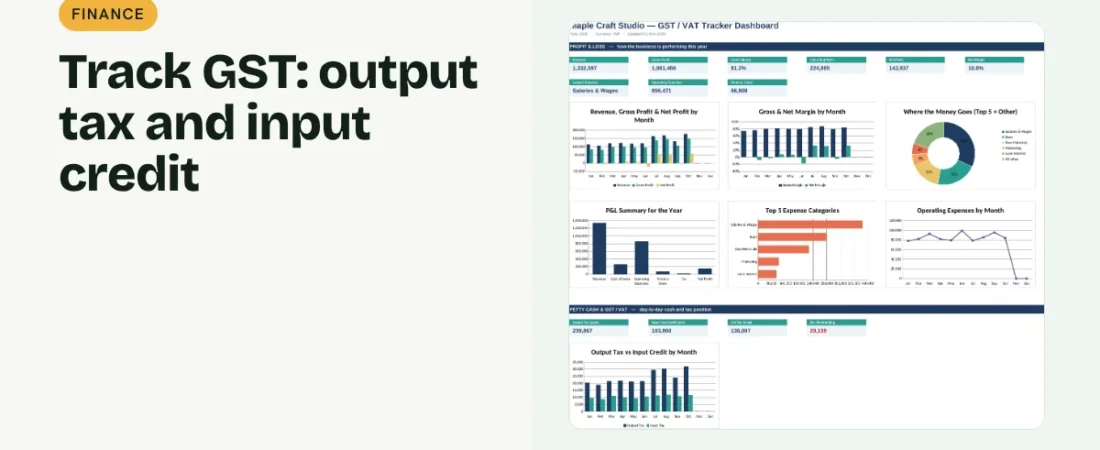
The ReadySheets GST / VAT Tracker works out monthly output tax, input credit and net payable, records payments and flags amounts outstanding on a dashboard.
Related guides: How to Make a Profit and Loss Statement in Excel · How to Track Business Income and Expenses in Excel