
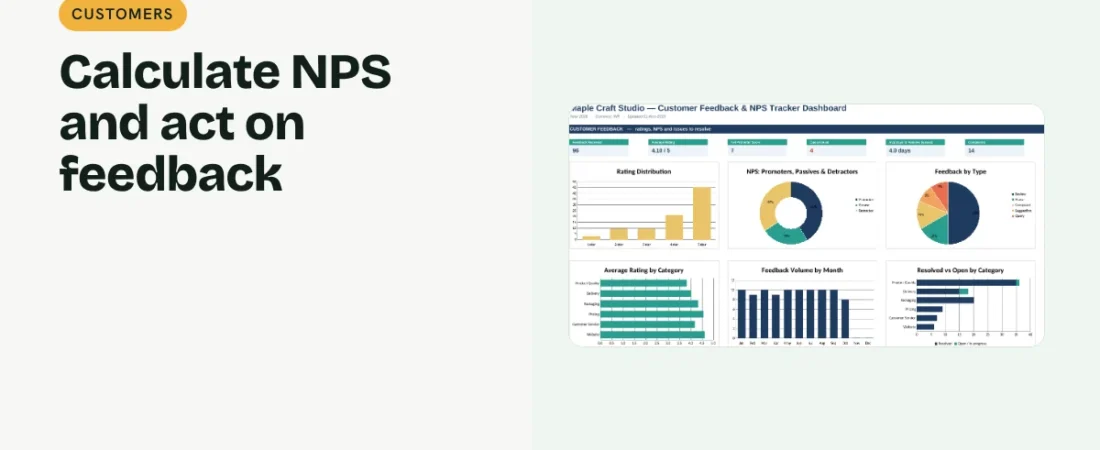
Net Promoter Score (NPS) is a simple way to measure how likely customers are to recommend you. This guide shows how to calculate NPS in Excel and keep a feedback log so the comments behind the score lead to action.
1. Collect a 0 to 10 score
Ask: How likely are you to recommend us to a friend? on a 0 to 10 scale, and invite a short comment. Record date, customer, channel and score.
2. Group the responses
Scores of 9 or 10 are promoters, 7 or 8 passives, and 0 to 6 detractors. Use IF to label each response.
Example: 100 responses
| Group | Responses | Share |
|---|---|---|
| Promoters (9–10) | 55 | 55% |
| Passives (7–8) | 30 | 30% |
| Detractors (0–6) | 15 | 15% |
| NPS | 55 − 15 = 40 |
3. Calculate the score
NPS = % promoters − % detractors. Use COUNTIFS to count each group and divide by total responses. The result ranges from −100 to +100.
4. Log issues and resolve them
Add type, category, status and resolved date. Days to resolve = resolved date − feedback date. Follow up with detractors first.
Make NPS useful
Read the comments
The score tells you how many are unhappy; the comments tell you why.
Watch the trend
Small samples move around. Compare quarters rather than reacting to one week.
Close the loop
Tell customers what you changed. It turns detractors into fans more often than you might expect.
FAQs
What is a good NPS?
Anything above zero means more promoters than detractors. Compare with your own past scores first.
How many responses do I need?
More is better. With very few responses, treat the score as a rough signal.
Should I also track star ratings?
Yes. Ratings and NPS answer slightly different questions and work well together.
Get the template
The ReadySheets Customer Feedback & NPS Tracker calculates NPS, tracks ratings and open issues and shows feedback by type and category on a dashboard. Pair it with the Customer Database.
Related guides: How to Build a Customer Database in Excel · How to Track Customer Leads in Excel